Local AI control room

Jack LLM Workstation

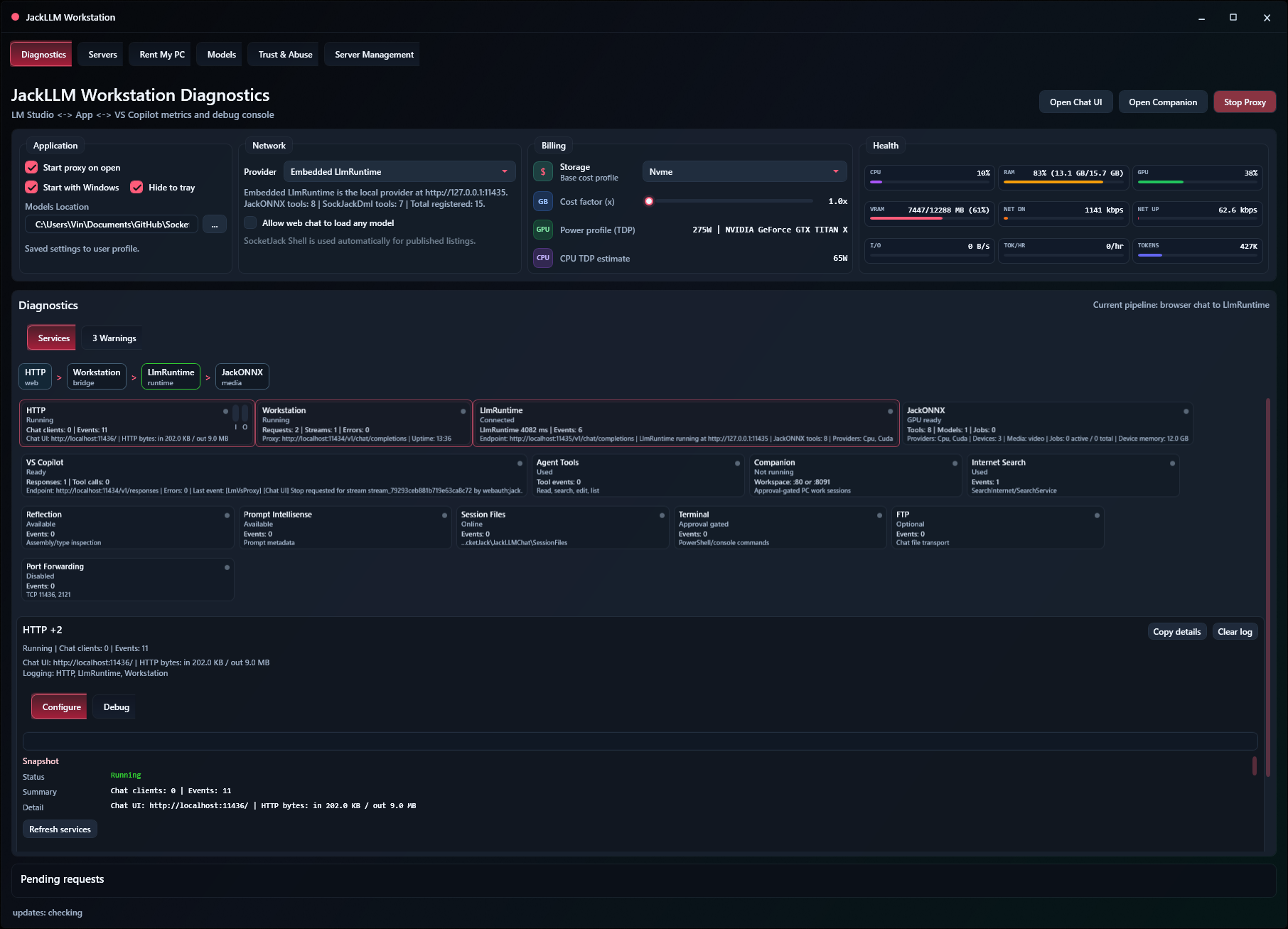
Install the application that turns your Windows or Linux machine into a SocketJack AI host. Jack LLM Workstation connects local models, tool permissions, project files, terminals, SQL, and remote browser sessions without hiding the work from the computer that owns it.

SocketJack.LlmRuntime AI technology SocketJack.Net networking stack Local tools and approvals Remote session steering Visual Studio Copilot VSIX
Main user web page

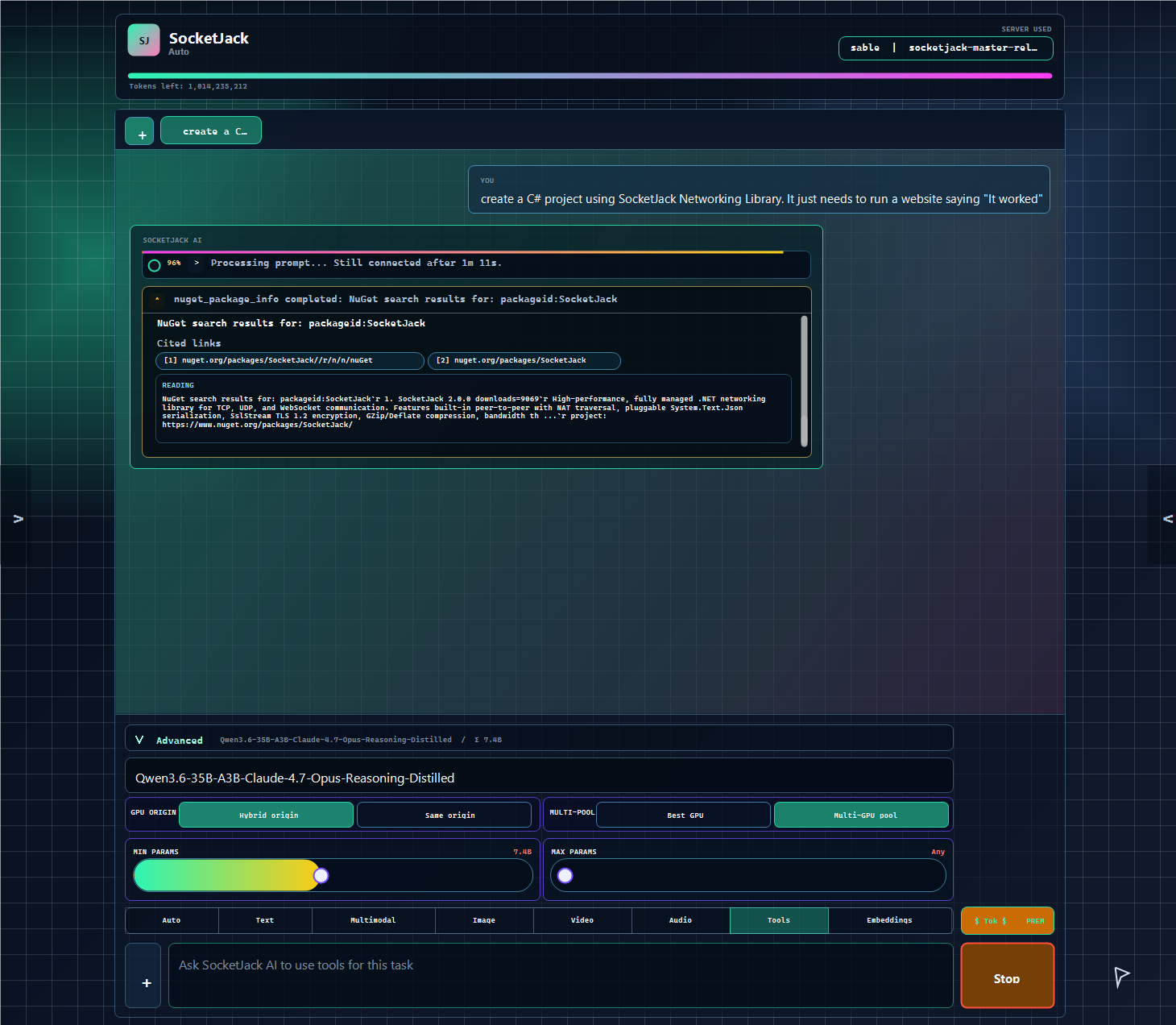
SocketJack AI in the browser

This is the page users land in after choosing a SocketJack host: a live chat workspace with server routing, token status, model modes, GPU origin controls, multi-GPU pooling, tool progress, and a prompt composer in one browser surface.

Users can route prompts through Auto, Tools, media, multimodal, and embedding modes without switching apps. Advanced controls expose model choice, parameter limits, hybrid origin, same-origin relay, best GPU, and multi-GPU pool routing. Tool calls, citations, progress, token cost, and stop controls stay visible while the workstation does the work. The same browser session connects back to Jack LLM Workstation hosts through SocketJack routing.
SocketJack AI browser session showing a prompt, running tool output, GPU routing controls, model mode tabs, and the prompt composer
The public web page is the user-facing side of Jack LLM Workstation: simple prompt entry on top of local or rented SocketJack compute.

Windows / Linux Setup (Executables)

Windows x64

Install the Jack LLM Workstation desktop application and updater.

Download JackLLM-Setup.msi

Windows x64 install

  1. Run the downloaded JackLLM-Setup.msi.
  2. Follow the installer prompts and launch Jack LLM Workstation.
  3. Sign in, review permissions, then open MasterList Auto to start.

Linux x64

Download the Debian package or run the install command in a terminal.

Download LlmWorkstation_Linux64.deb

Linux x64 install

  1. Download LlmWorkstation_Linux64.deb or copy the terminal command below.
  2. Run the package with apt so dependencies are installed.
  3. Launch Jack LLM Workstation, sign in, then open MasterList Auto to start.
curl -L "https://SocketJack.com/Update/LlmWorkstation_Linux64.deb" -o /tmp/jackllm-workstation.deb && sudo apt install -y /tmp/jackllm-workstation.deb

Copilot server picker

SocketJack Visual Studio Extension

The Windows Jack LLM Workstation installer includes the SocketJack VSIX installer. Leave the Visual Studio extension option checked to install the Copilot server picker during setup, or clear it when you only want the workstation service.

Install SocketJack Visual Studio ExtensionOptional setup checkbox for the bundled VSIX. The extension can be skipped without changing the workstation install.

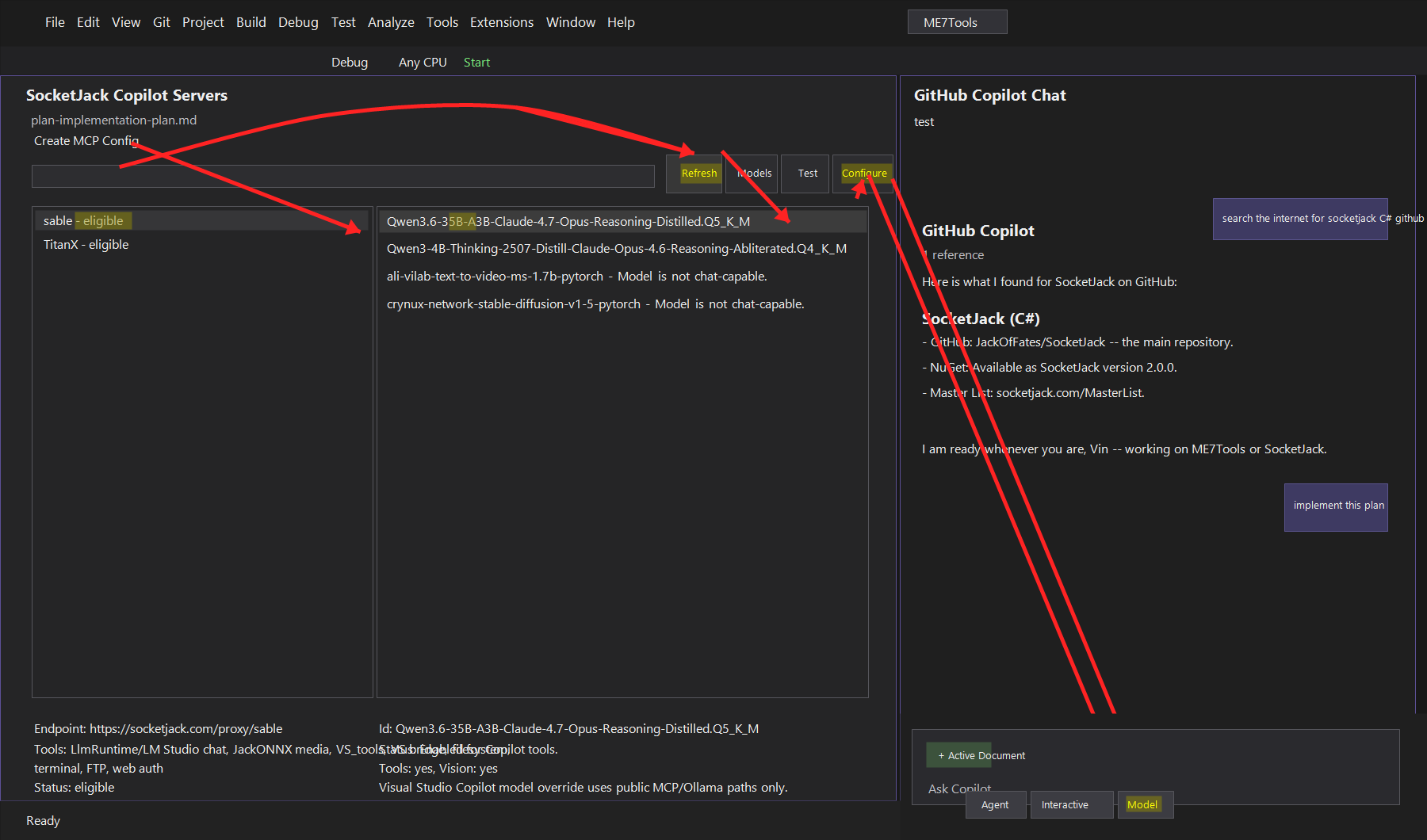
After Visual Studio restarts, open Extensions > SocketJack > SocketJack Copilot Servers, select a server, choose an eligible tools-capable model, test the route, and click Configure.

Visual Studio with the SocketJack Copilot Servers tool window selecting a server and model beside GitHub Copilot Chat
The extension writes the solution MCP config and Visual Studio Ollama BYOM settings, then Copilot can route model requests through the selected SocketJack server.
1Choose during setupThe Jack LLM Workstation MSI includes an optional SocketJack VSIX install checkbox.
2Open the pickerUse Extensions > SocketJack to open the Copilot Servers window inside Visual Studio.
3Select server and modelRefresh the MasterList, pick an eligible server, then choose a loaded or loadable tools-capable model.
4Configure CopilotThe extension updates MCP and BYOM so Visual Studio can send Copilot traffic through SocketJack.

Showcase features

A workstation is more than a chat box. It is the local control surface for models, tools, project context, permissions, server health, and browser-steered sessions.

AI

Local AI runtime

SocketJack.LlmRuntime coordinates local model providers, runtime health, generation requests, media tools, and model availability from the host machine.

NET

Secure network stack

SocketJack.Net handles the HTTP, WebSocket, proxy, relay, and server-list plumbing that makes a private workstation reachable from SocketJack sessions.

OK

Explicit approvals

File, terminal, SQL, internet, and automation capabilities stay behind workstation-side permissions so hosts expose only what they choose.

GPU

Host diagnostics

Watch model status, usage, token settings, runtime reports, and workstation health before publishing the machine to the master list.

PRJ

Project aware sessions

Attach project files, generated artifacts, and tool outputs to a session so useful work remains tied to the same local workspace.

GO

Remote steering

Start at SocketJack.com, route prompts to your workstation, stream results back, and keep control without moving every workflow to a remote service.

Feature diagram

The application, AI technology, and networking stack each have a clear job, which makes the platform easier to explain and easier to evolve.

SocketJack.comBrowser session, server directory, launch route, account, and remote steering surface.
SocketJack.NetNetworking stack for HTTP, WebSockets, relays, tunnels, routing, and host publication.
Jack LLM WorkstationThe installed desktop or Linux application that owns approvals, sessions, tools, and host state.
SocketJack.LlmRuntimeAI runtime technology that talks to local providers, model catalogs, generation jobs, and diagnostics.
Models and toolsLM Studio, local models, files, terminal commands, SQL, search, projects, and generated artifacts.
Progress, tokens, logs, tool results, approvals, and artifacts stream back through SocketJack.Net to the browser session.
Getting Started

Start in the main Jack LLM Workstation application, add the Visual Studio extension when you want Copilot routing, then publish or select a server from SocketJack.

3
MasterList Auto server selection

Load up the MasterList Auto, select, and start (Recommended)

Recommended path for launching quickly with automatic server selection.

4
Manual server selection

(Optional) Load the MasterList and manually select a server (Advanced)

Optional advanced path when you want to pick a specific server yourself.

GPU Configuration

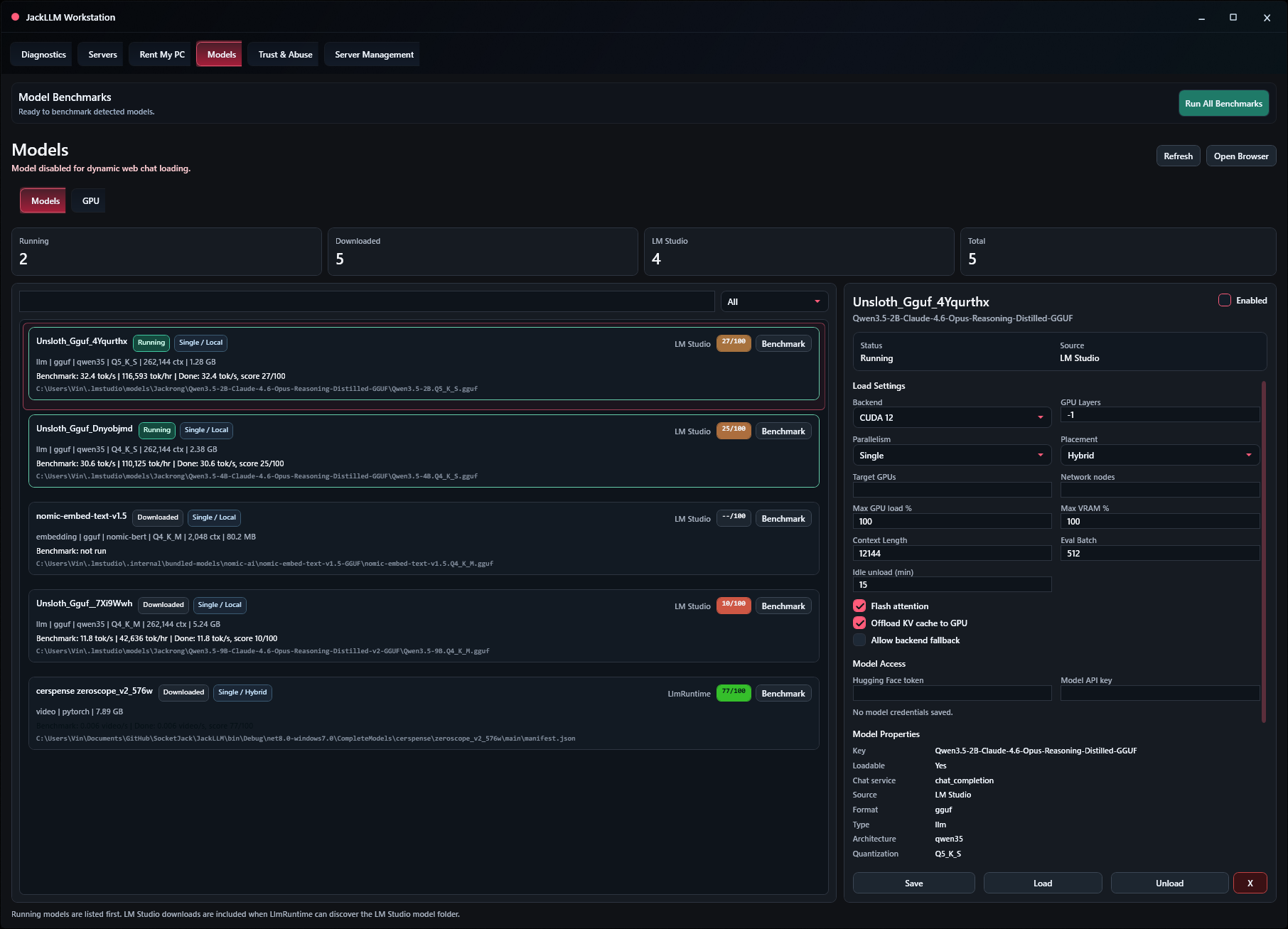
Jack LLM Workstation lets each model carry its own load profile, so small models can stay responsive while larger GGUF or media models get deliberate hardware placement.

Backend

Select the compute path

Choose CUDA 12, DirectML, CPU, or backend fallback behavior per model. Use GPU Layers to control how much of a model is offloaded, including full auto offload when the backend supports it.

Placement

Pin work to hardware

Target a specific GPU such as cuda:0, leave targets empty for automatic placement, or use hybrid and parallel modes when a model should span local devices or network nodes.

Headroom

Protect VRAM and load

Set maximum GPU load and VRAM percentages so the workstation keeps room for the desktop, multiple running models, or rented sessions. Idle unload keeps heavyweight models from squatting on memory.

Throughput

Shape speed versus memory

Adjust context length, eval batch, flash attention, and KV-cache offload to trade memory use for response speed, longer prompts, or steadier multi-session throughput.